

 弊社は製品に自信を持っており、面倒な製品を提供していません。


あなたはC_S43_2601試験参考書の更新をどのぐらいでリリースしていますか?
すべての試験参考書は常に更新されますが、固定日付には更新されません。弊社の専門チームは、試験のアップデートに十分の注意を払い、彼らは常にそれに応じて試験内容をアップグレードします。
Tech4Examはどんな試験参考書を提供していますか?
テストエンジン:C_S43_2601試験試験エンジンは、あなた自身のデバイスにダウンロードして運行できます。インタラクティブでシミュレートされた環境でテストを行います。
PDF(テストエンジンのコピー):内容はテストエンジンと同じで、印刷をサポートしています。
更新されたC_S43_2601試験参考書を得ることができ、取得方法?
はい、購入後に1年間の無料アップデートを享受できます。更新があれば、私たちのシステムは更新された試験参考書をあなたのメールボックスに自動的に送ります。
あなたのテストエンジンはどのように実行しますか?
あなたのPCにダウンロードしてインストールすると、SAP C_S43_2601テスト問題を練習し、'練習試験'と '仮想試験'2つの異なるオプションを使用してあなたの質問と回答を確認することができます。
仮想試験 - 時間制限付きに試験問題で自分自身をテストします。
練習試験 - 試験問題を1つ1つレビューし、正解をビューします。
返金するポリシーはありますか? 失敗した場合、どうすれば返金できますか?
はい。弊社はあなたが我々の練習問題を使用して試験に合格しないと全額返金を保証します。返金プロセスは非常に簡単です:購入日から60日以内に不合格成績書を弊社に送っていいです。弊社は成績書を確認した後で、返金を行います。お金は7日以内に支払い口座に戻ります。
割引はありますか?
我々社は顧客にいくつかの割引を提供します。 特恵には制限はありません。 弊社のサイトで定期的にチェックしてクーポンを入手することができます。
C_S43_2601テストエンジンはどのシステムに適用しますか?
オンラインテストエンジンは、WEBブラウザをベースとしたソフトウェアなので、Windows / Mac / Android / iOSなどをサポートできます。どんな電設備でも使用でき、自己ペースで練習できます。オンラインテストエンジンはオフラインの練習をサポートしていますが、前提条件は初めてインターネットで実行することです。
ソフトテストエンジンは、Java環境で運行するWindowsシステムに適用して、複数のコンピュータにインストールすることができます。
PDF版は、Adobe ReaderやOpenOffice、Foxit Reader、Google Docsなどの読書ツールに読むことができます。
購入後、どれくらいC_S43_2601試験参考書を入手できますか?
あなたは5-10分以内にSAP C_S43_2601試験参考書を付くメールを受信します。そして即時ダウンロードして勉強します。購入後に試験参考書を入手しないなら、すぐにメールでお問い合わせください。
SAP C_S43_2601 試験シラバストピック:
| セクション | 比重 | 目標 |
|---|---|---|
| トピック 1: ユーザーインターフェースとユーザーエクスペリエンス | 10% or less | - SAP Fiori アプリケーション
|
| トピック 2: 保全処理 - 高度な機能 | 11% - 20% | - 高度な保全シナリオ
|
| トピック 3: 予防保全 | 11% - 20% | - 保全計画
|
| トピック 4: 組織単位とマスタデータ | 11% - 20% | - 企業構造
|
| トピック 5: 保全処理 - 基本機能 | 11% - 20% | - 保全通知
|
| トピック 6: Clean Core の管理 | 10% or less | - Clean Core の原則
|
| トピック 7: 技術オブジェクト | 11% - 20% | - 設備および機能場所
|
SAP Certified Implementation Consultant - SAP S/4HANA Cloud Private Edition, Asset Management (C_S43_2601) 認定 C_S43_2601 試験問題:
In the following assessment you will slip into the role of a consultant implementing SAP S/4HANA Asset Management OnPrem/Private Cloud for Machine Manufacturing Inc. . You need to fulfill various system tasks to setup certain business processes and test them.
Note:
In the task descriptions is no information provided if and/or how Asset Management specific customizing settings need to be adapted. This is an implicit part of the exam.
Note:
There is no information provided which UI to use when creating the data in the system e.g. SAP GUI, SAP Fiori Launchpad. This is an implicit part of the exam.
Your performance in each exercise will be evaluated to produce an overall score that determines a pass or fail for the exam. Please read every exercise carefully and enter any data exactly as requested without alteration. Some input data is provided in tables or in the task descriptions, however your input data is not limited to these parameters.
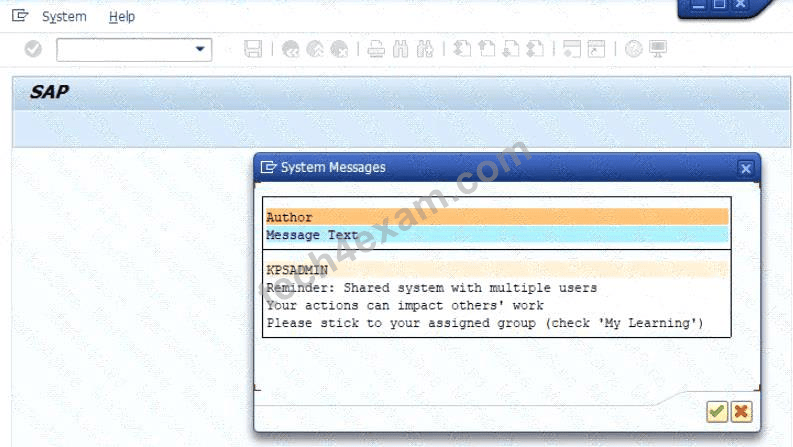
Use the following Logon information for all tasks:
Caution:
Please make sure you are always using your assigned group number (denoted as ## in the following) .
Your results will not be recorded if you are not using your own group number.
For example, if your group number is 10 i.e. (## = 10), your user will be S43900-10.
To find your group number: Click the Access button on the practice system details page. You will find your group number displayed beneath the "Get started" header in the pop-up window. Alternatively, in your Windows Terminal Server, choose the Windows button in the lower left corner. The Start Menu opens. It its upper left corner, choose the Expand icon (three white lines). Find your user name next to the user icon on the left side of the menu - the last two digits of the user name are your group number ##.
Note:
To access your backend system in the Windows Terminal Server, open the SAP Logon application and start the T41 system (Client 400 ). You can access the SAP Fiori Launchpad from the SAP Menu in T41. Always work with user S43900-## in order to have the required roles in place for your tasks.
Caution:
To keep the system running smoothly and avoid unnecessary costs, please follow the assigned exercises carefully when using the SAP Landscape. Avoid going beyond the exercise scope and stay within your allocated resources to help maintain a stable and efficient environment for everyone and to ensure your data is evaluated properly.
Note:
In the following, you will be asked to create new transaction data, among others. If you are asked to create one specific new transaction data object, and - for whatever reason - you create more than one of that kind, SAP will evaluate your newest version only. For example: if you are asked to create a Maintenance Order of a specific Order Type in an exercise and you create three different Maintenance Orders of a specific Order Type, only your order with the highest order number will be evaluated.
正解:
See the Explanation for complete Solution of this Task.
Explanation:
Task Objective
In this assessment, you assume the role of a consultant implementing SAP S/4HANA Asset Management for Machine Manufacturing Inc. . Your goal is to set up and test specific business processes through various system tasks.
Step 1: Identify Your Assigned Group Number (##)
This is the most critical step, as your results will only be recorded if you use your specific group number, denoted as ## in all instructions.
How to find your number:
* Method A: Click the Access button on the practice system details page; your group number is displayed beneath the "Get started" header.
* Method B: In the Windows Terminal Server, click the Windows button (Start Menu), select the Expand icon (three white lines), and find your user name next to the user icon. The last two digits of that name are your group number.
Step 2: Access the System
You must use the specific credentials provided to ensure you have the required roles for the assessment.
Logon Credentials:
* System : T41
* Client : 400
* User Name/ID : S43900-## (e.g., if your group number is 10, use S43900-10)
* Password : Welcome1
Connection Methods:
* SAP GUI : Open the SAP Logon application in the Windows Terminal Server and start the T41 system (Client 400).
* SAP Fiori Launchpad : This can be accessed directly from the SAP Menu within the T41 system.
Step 3: Understand Implicit Exam Rules
The assessment does not provide exhaustive instructions; certain technical decisions are considered part of the exam.
* Customizing : You must determine if and how specific Asset Management customizing settings need to be adapted.
* User Interface : You are free to choose between the SAP GUI or SAP Fiori Launchpad to create data, as the instructions do not specify which to use.
* Data Accuracy : Enter all data exactly as requested in the tables or descriptions without any alterations.
Step 4: Evaluation of Transaction Data
If you are asked to create a specific transaction object (like a Maintenance Order) and you create multiple versions, the system will only evaluate the newest version (the one with the highest identifying number).
Caution : To ensure your data is evaluated properly and to maintain system stability, stay strictly within the scope of the assigned exercises and your allocated resources.
Create and use a Maintenance Work Center
The project team evaluates during the implementation project the organizational elements in SAP S/4HANA Asset Management. The following features need to be checked:
* Create a Maintenance Work Center
* Create a capacity demand for a Maintenance Work Center
* Create a new Maintenance Work Center master record ZZ-ME## for maintenance plant 1010 similar to maintenance work center T-ME00 and save it. Use the following information:
* Create a capacity demand of 1 hour for the just created Maintentance Work Center ZZ-ME## by creating a new maintenance order of order type PM01 .
正解:
See the Explanation for complete Solution of this Task.
Explanation:
Task 3: Create and Use a Maintenance Work Center
Objective
In Task 3, the requirement was to:
* create a new maintenance work center ZZ-ME42 for plant 1010 similar to T-ME00
* maintain the required capacity values
* create a 1-hour capacity demand for that work center by creating a maintenance order of type PM01


Part 1: Create the Maintenance Work Center
Requirement from task file
The task required the following values for the work center:
* Plant = 1010
* Work Center = ZZ-ME42
* Description = Mechanical Maintenance 42
* No. Ind. Capacities = 5
* Capacity = 24.00 H
The task also stated that the work center must be created similar to maintenance work center T-ME00 .
Step-by-step procedure
Step 1: Open work center creation
* Go to SAP GUI command field
* Enter transaction IR01
* Press Enter
Transaction IR01 is used to create a new work center. This is the correct starting point for creating the maintenance work center required in Task 3.
Step 2: Enter initial work center data
On the Create Work Center: Initial Screen , enter:
* Plant = 1010
* Work Center = ZZ-ME42
* Work Center Category = 0005
* In Copy from :
* Plant = 1010
* Work Center = T-ME00
Then press Enter .
The task explicitly required the work center to be created for plant 1010 and to be created similar to T-ME00.
Work center category 0005 is the maintenance work center category, so this was the correct category to use for a maintenance work center.
Step 3: Include capacity data during copy
When the Copy from popup appeared:
* select Capacities
* continue with the green check
This was important because the task required changing capacity-related data:
* No. Ind. Capacities = 5
* Capacity = 24.00 H Copying the capacity data ensured the new work center inherited the capacity structure from T-ME00 and could then be adjusted correctly.
Step 4: Maintain basic data
On the work center master screen:
* change the description to Mechanical Maintenance 42
This matches the exact description required by the task.
Step 5: Maintain capacity values
Go to the Capacities tab, then open the capacity detail screen.
Maintain or verify:
* No. Ind. Capacities = 5
* Capacity Base Unit = H
* Capacity recalculated to 24.00 H
In our system, the Capacity field was system-calculated and not directly editable.
The final valid values were achieved with:
* Start Time = 08:00:00
* End Time = 17:00:00
* Length of breaks = 01:00:00
* Capacity Utilization = 60
* No. Ind. Capacities = 5
This produced:
* Capacity = 24.00 H
The task required 24.00 H capacity, but SAP calculated it automatically based on operating time, utilization, and number of individual capacities.
The resulting calculation was correct and matched the task requirement exactly.
Step 6: Save the work center
* Click Save
Later, when trying to create the same work center again, SAP displayed the system message:
* "Work center ZZ-ME42 in plant 1010 already exists"
Explanation / Verification:
This system message confirmed that the work center had already been created successfully.
Therefore, the creation of ZZ-ME42 was verified as complete.
Part 2: Create a 1-Hour Capacity Demand
Requirement from task file
The task required:
* create a capacity demand of 1 hour
* for the newly created maintenance work center ZZ-ME42
* by creating a maintenance order of type PM01
Step-by-step procedure
Step 7: Open maintenance order creation
* In the command field, enter /nIW31
* Press Enter
Transaction IW31 is used to create a maintenance order.
The /n ensured SAP exited the previous transaction and opened the new one directly.
Step 8: Enter order header data
On the Create Maintenance Order: Initial Screen , enter:
* Order Type = PM01
* Planning Plant = 1010
Then press Enter .
The task explicitly required the capacity demand to be created by means of a maintenance order of type PM01 .
Step 9: Enter order description
On the order header screen, enter a short text such as:
* Capacity demand ZZ-ME42
The task did not prescribe a specific short text, so a meaningful description was used for traceability.
Step 10: Create the first operation
In the first operation area / operations overview, maintain:
* Operation = 0010
* Work Center = ZZ-ME42
* Plant = 1010
* Control Key = PM01
* Work Duration / Work = 1
* Unit = H
Then press Enter .
This operation is the actual source of the capacity demand .
The capacity demand is not created merely by the order header; it is created by assigning the operation to the work center with a planned work value of 1 hour .
Therefore, these operation entries were the critical part of fulfilling Task 3.
Step 11: Save the maintenance order
* Click Save
SAP displayed the confirmation message:
* "Order saved with number 4000314"
Explanation / Verification:
This was the final confirmation that the maintenance order had been created successfully.
Because the operation was assigned to ZZ-ME42 with 1 H planned work, this verified that the required 1- hour capacity demand had been created for the work center.
Verified completed objects
The following results were verified during execution:
* Maintenance Work Center created
* Work Center = ZZ-ME42
* Plant = 1010
* confirmed by SAP message that the work center already existed when rechecked
* Capacity maintained correctly
* No. Ind. Capacities = 5
* Capacity = 24.00 H
* Capacity demand created
* maintenance order type PM01
* operation assigned to ZZ-ME42
* planned work = 1 H
* Order successfully saved
* SAP confirmation: Order saved with number 4000314

 -Taguchi

